Access to Neo4j Bloom
In order to use Neo4j Bloom, you need to be able to access the Hyperion database via the binary Bolt protocol. This can be achieved by using the cloudflared utility, which will route your traffic via the CF Zero Trust network.
Step-by-step Guide
Cloudflare TCP Rouring
First you need to make sure you have network access to the database via the Cloudflare Zero Trust network:
- Install
cloudflaredvia Homebrew using:brew install cloudflare/cloudflare/cloudflared
- Authenticate to Cloudflare Zero Trust by running:
cloudflared access login graph.oobtel.network- Note: this will open a browser window with a Cloudflare login panel. Select Okta authentication to proceed
- Configure
cloudflaredto route traffic to Hyperion DB using:cloudflared access tcp --hostname graph.oobtel.network --url localhost:7687(you can choose whatever port on your localhost)
Setting up Neo4j
Next, add the database to your Neo4j app
- If you don't have it installed yet, installed Neo4j Desktop using
brew install --cask neo4j - Open Neo4j Bloom, create a new Project and add a remote connection.
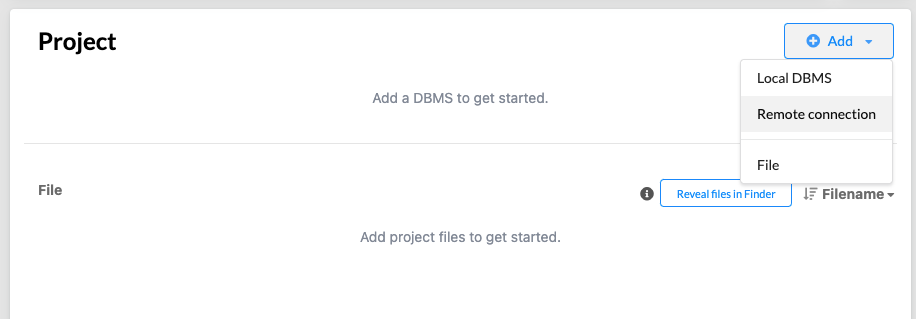
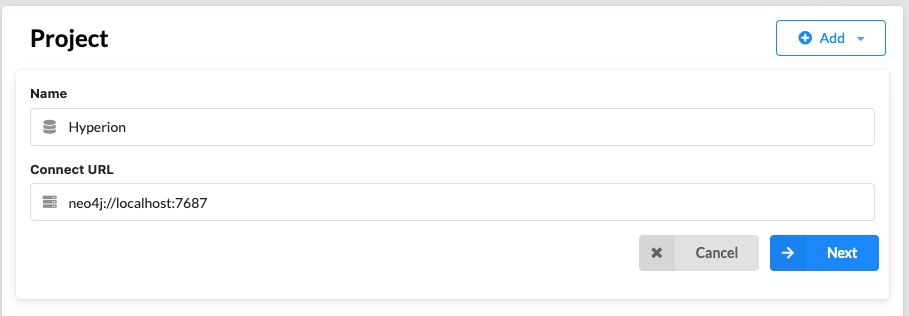
- Fill in the name and Connect URL
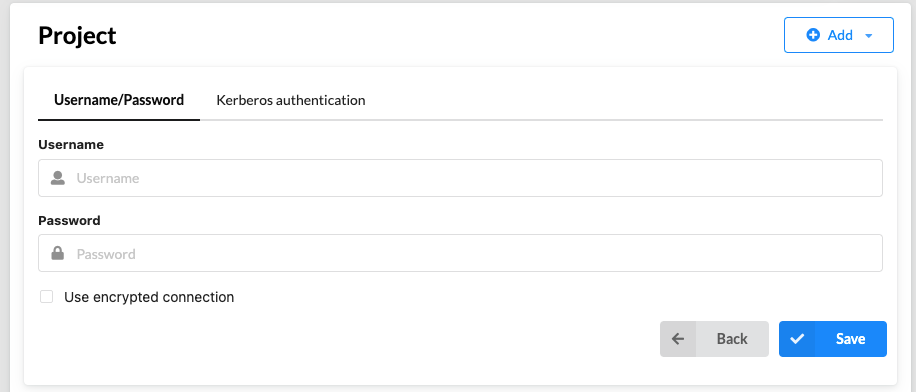
- Fill in your Hyperion DB credentials (if you don't have them yet, reach out to Bartosz)
- Click
Connectand open Neo4j Bloom by clicking on the dropdown icon next toOpenand selectingNeo4j Bloom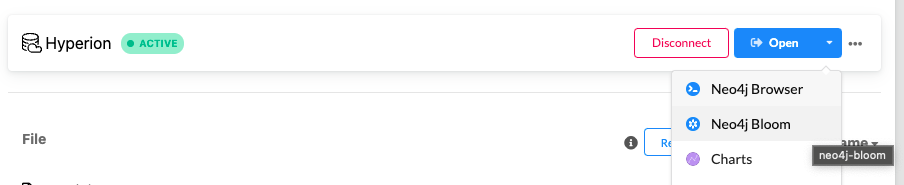
Setting up Bloom
- Once in Bloom, click on the
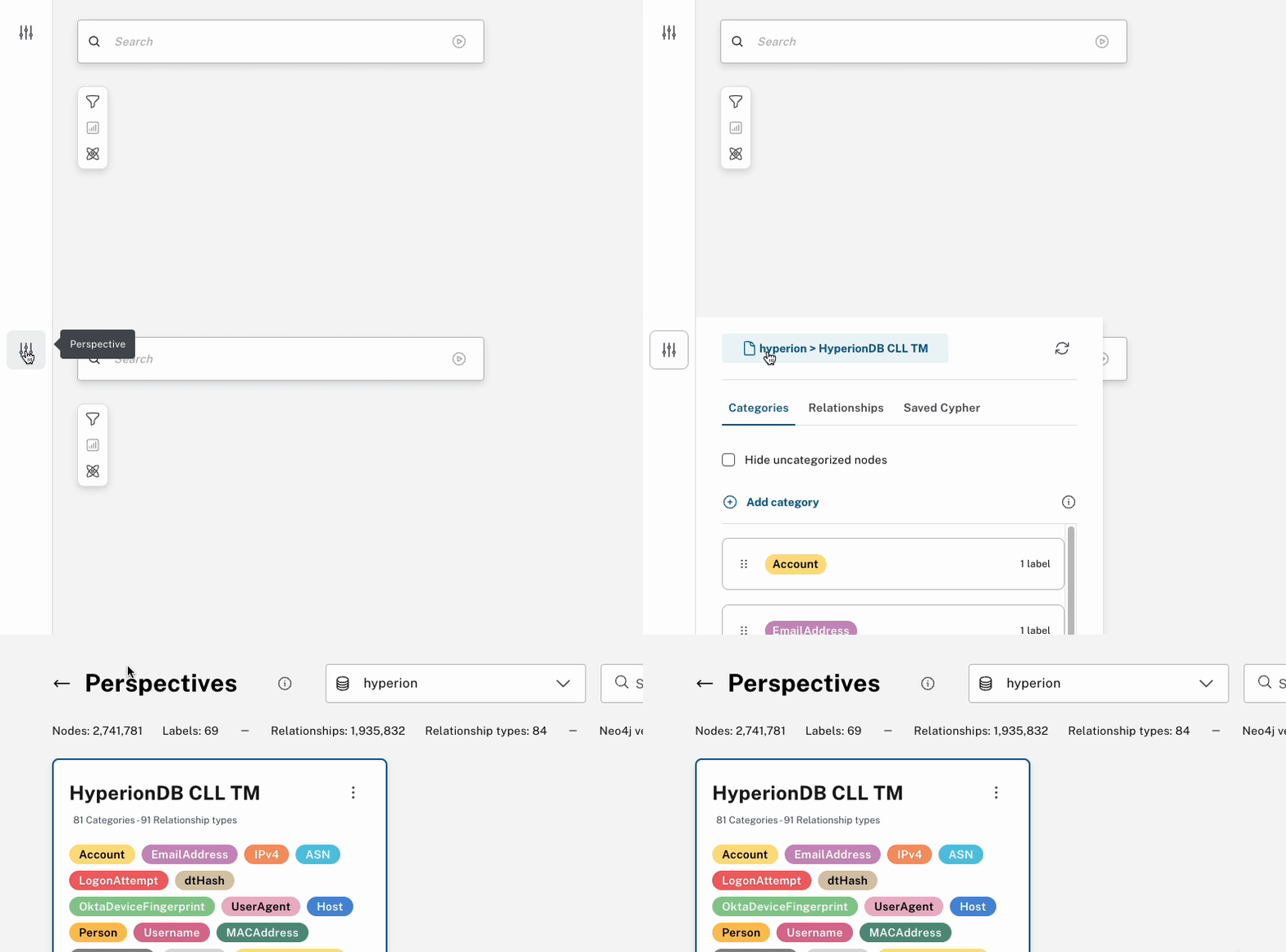
Importbutton in the top-right corner and import the Perspective Bundle which you can download here. - If for some reason you cannot see the import button, or you want to update your Perspective Bundle, click on the settings icon in the top-left, go back to the homescreen where the button should not be available.