Writing workflows in Windmill
Overview
Windmill allows for writing 2 major types of "workflows":
- Scripts - code written in Golang, Python, JavaScript, PowerShell or Bash
- Flows - more elaborate workflow "chains" which can combine scripts written in different languages (want to use a library only available in Python but normally prefer to use Golang? Windmill to the rescue!)
That said, you should avoid writing Scripts for most purposes - they do not have Error Handlers built in and are more difficult to debug. For Hyperion, the only acceptable usage of Scripts is for them to be used as part of a Flow - a script should not be used on its own.
Writing a simple ETL flow
In this tutorial, we will write a simple Flow which performs a Splunk search via its REST API returning a list of recent Zoom meetings, transforms and enriches the identified IP addresses and saves the results to the Hyperion database.
Getting started
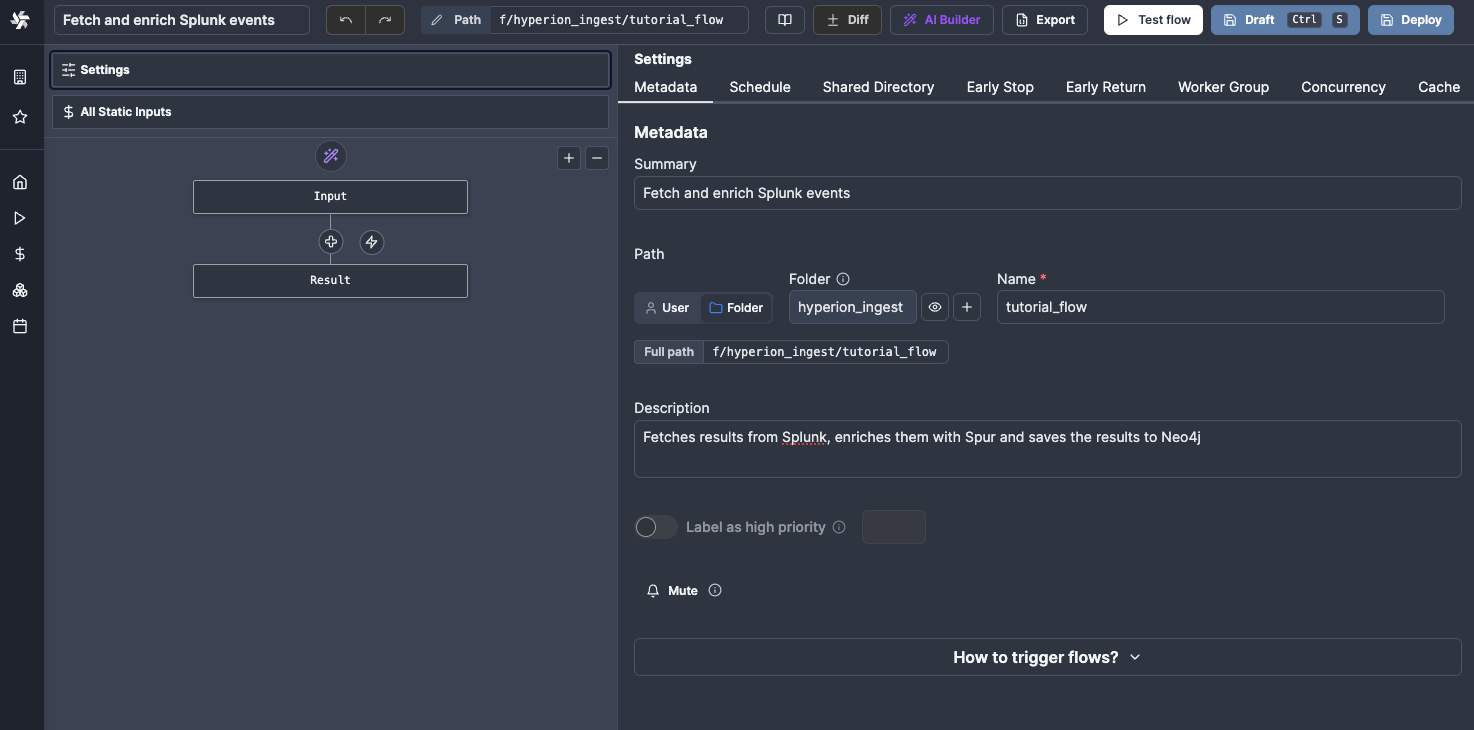
Let's start with creating a new flow and placing it in the right directory - since this will be an ingest script running on a periodic schedule, it should be placed into f/hyperion-ingest.
Not sure why? You can find more details on our folder layout in Windmill guidelines.
Fetching results from Splunk
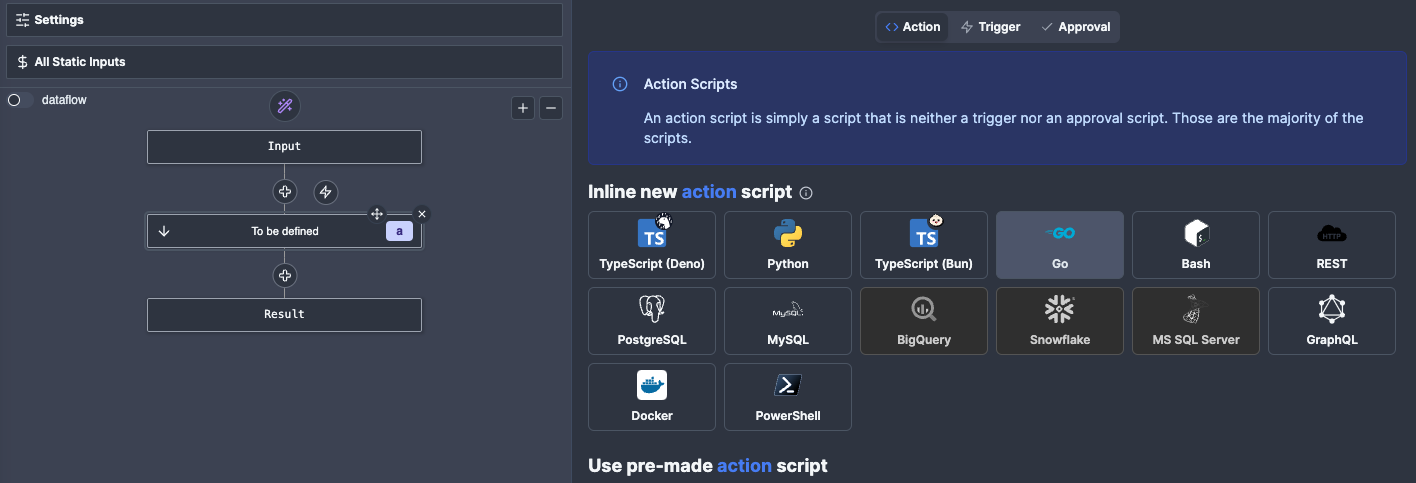
Now that we have a workflow, we need to create our first Action - an action is just a step of a Flow, and is essentially a script which can take some inputs and produces some outputs. For this tutorial we will write a simple Golang script which does a web request to the Splunk API. While we're at it, we will also save that script to our workspace so other people can use it in the future and don't need to write this logic from scratch!
Let's start by adding an Action to our Flow. Generally it's best to use Golang wherever possible, since it has much faster performance.
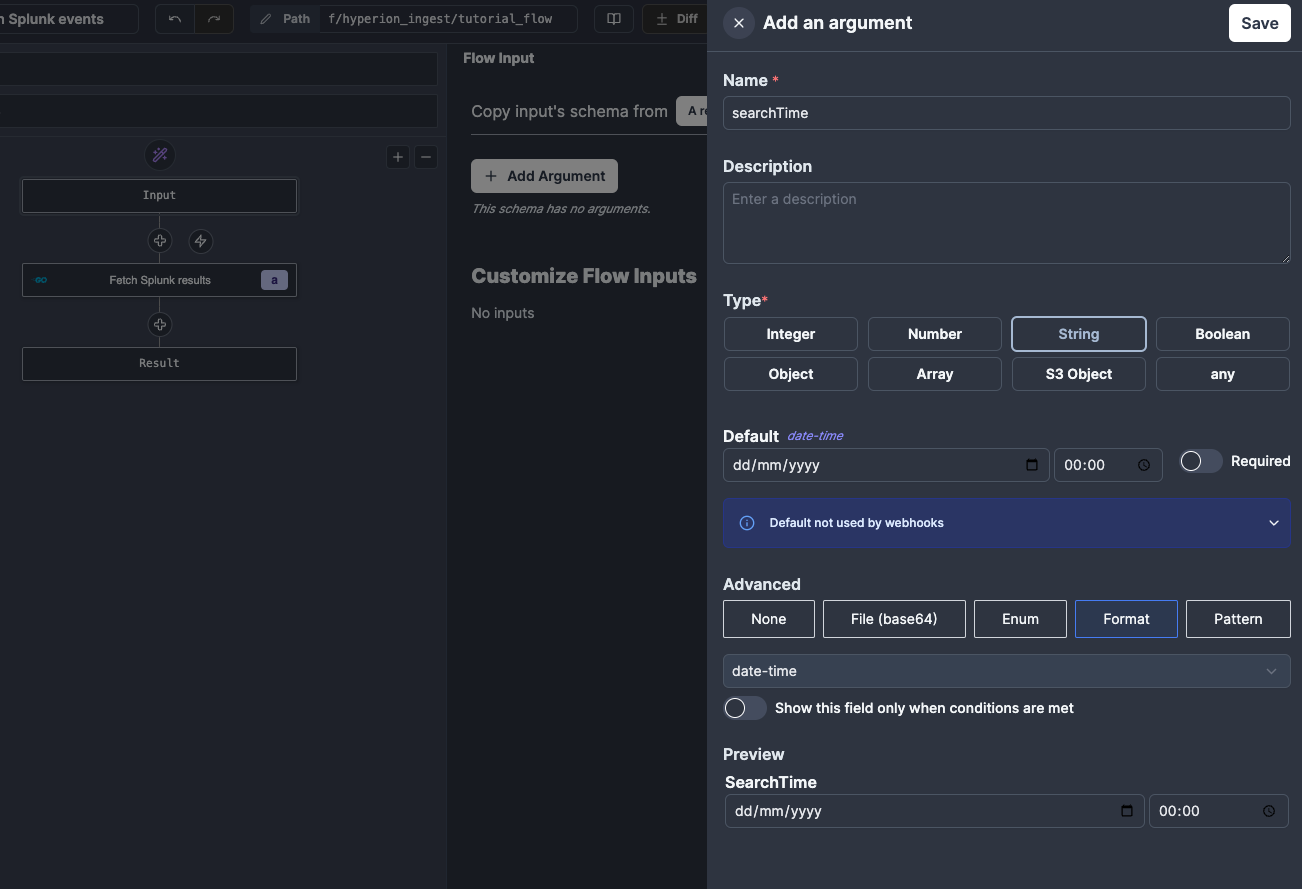
Once done, we can start writing code for our Action, specifially we want it to reach out to the Splunk API and fetch some data. In order to abstract our script to make it reusable between flows, we will start by defining 2 inputs to our Flow - a query and a searchTime (i.e. the earliest time for events searched by Splunk). We can do this at the top of the Flow graph by clicking Input and then adding our inputs. We will specify both as strings, but add a format (regex validation) to searchTime.
Now that we have the inputs defined, we need to connect them to our Action, which we can do on the lower panel of the Action editor by clicking on the right hand side button, and then clicking on the input on the right hand side panel.
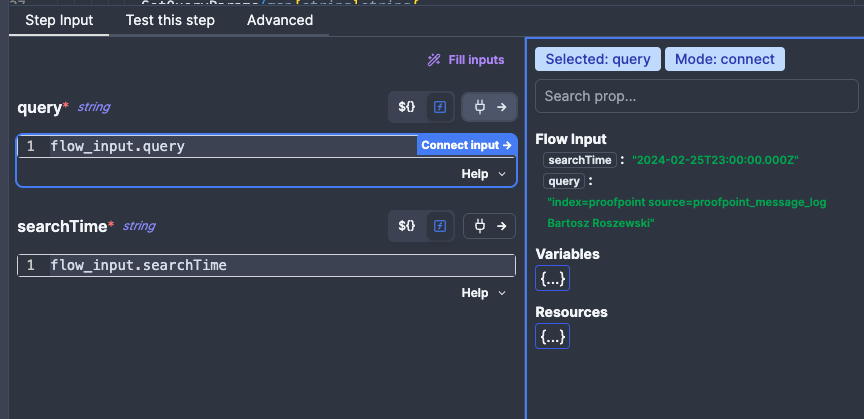
Now that we have our inputs connected, we need to write code for the Action, which you can see below. In short the code:
- Fetches the Splunk credentials from a stored Resource
- Does a POST request to the Splunk API
- Checks if the response code is 200 and returns the data as a JSON.
package inner

import (
  "fmt"
  "encoding/json"
  resty "github.com/go-resty/resty/v2"
  wmill "github.com/windmill-labs/windmill-go-client"
)

func main(query string, searchTime string) (interface{}, error)  {

  // To avoid hardcoding credentials, Windmill provides Variables and Resources to store sensitive data in.
  // A Resource is a set of variables, so in this example Splunk Resources contains both the API token and the Splunk URL.
  splunk, err := wmill.GetResource("f/secrets/cll_splunk")

  if err != nil {
      fmt.Errorf("Something went wrong with Splunk Resource retrieval: %s", err)
  } else if splunkMap, err := splunk.(map[string]interface{}); err {
      // access URL and API Token from the Splunk resource
      url, _ := splunkMap["url"].(string)
      token, _ := splunkMap["token"].(string)

      splunkUrl := fmt.Sprintf("%s/services/search/jobs", url)
      query = "search " + query //prepend the search operator - required by the API

      client := resty.New()

      //create the API POST request
      resp, err := client.R().
          SetHeader("Authorization", token).
          SetQueryParams(map[string]string{
              "output_mode": "json",
          }).
          SetFormData(map[string]string{
              "search": query,
              "exec_mode": "oneshot",
              "earliest_time": searchTime,
              "count": "0",
          }).Post(splunkUrl)

      if err != nil {
        return nil, fmt.Errorf("Splunk API request failed: %d", err)
      }

      if resp.StatusCode() == 200 {
          // serialise into JSON
          var jsonResp map[string]interface{}
          err = json.Unmarshal(resp.Body(), &jsonResp)
          if err != nil {
            return nil, fmt.Errorf("Error parsing JSON response: %v", err)
          }

          return jsonResp["results"], nil

      } else {
        return nil, fmt.Errorf("Splunk API request failed with non-200 code: %d", resp.StatusCode())
      }
  }
  return nil, err
}
As you can see, this code does only one thing - fetch data from an API - the idea of using a data pipeline is to break down the workflow into small components that can be easier debugged, monitored, improved and reused between flows.
Now that we have the code done, we can test our flow with some sample inputs using the Test this step tab. This will only execute this particular Action, so we need to provide it all the input it will need to run (i.e. the query and searchTime).
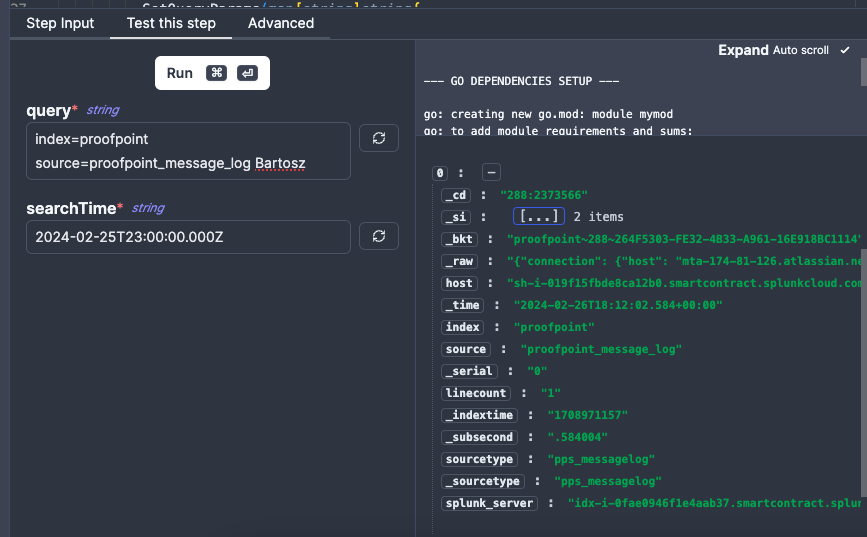
If everything went correctly, you should see some results in the right hand side panel, as on the screenshot.
Transforming the data
In this step we transform the data received from the Splunk API.
An argument can be made that data transformation could be done withing the first step directly to avoid sending too much data between tasks, however, using separate steps allows for more flexibility and can help with debugging - if you mess up your transform logic, you don't need to re-run the Splunk search, which would happen if it was part of the same step.
To showcase the ability to use different programming languages within the same Flow, we will use Python this time. Also, it is a lot easier to do JSON object transforms in Python, which is one of the few use cases where using Python is recommended.
In this script we:
- Recurse throught the events, and extract the
_rawfield to get the raw event from Zoom - this will help if in the future we ever need to fetch our logs from somewhere other than Splunk, as we are not reliant on any Splunk-specific formatting. - Extract a few fields of interest and add it to a
transformed_eventsarray. - Extract IPs from every participant in every meeting and add it to a
ip_listarray (this will come in handy later on). - Return the
transformed_eventsandip_listarrays as a single object.
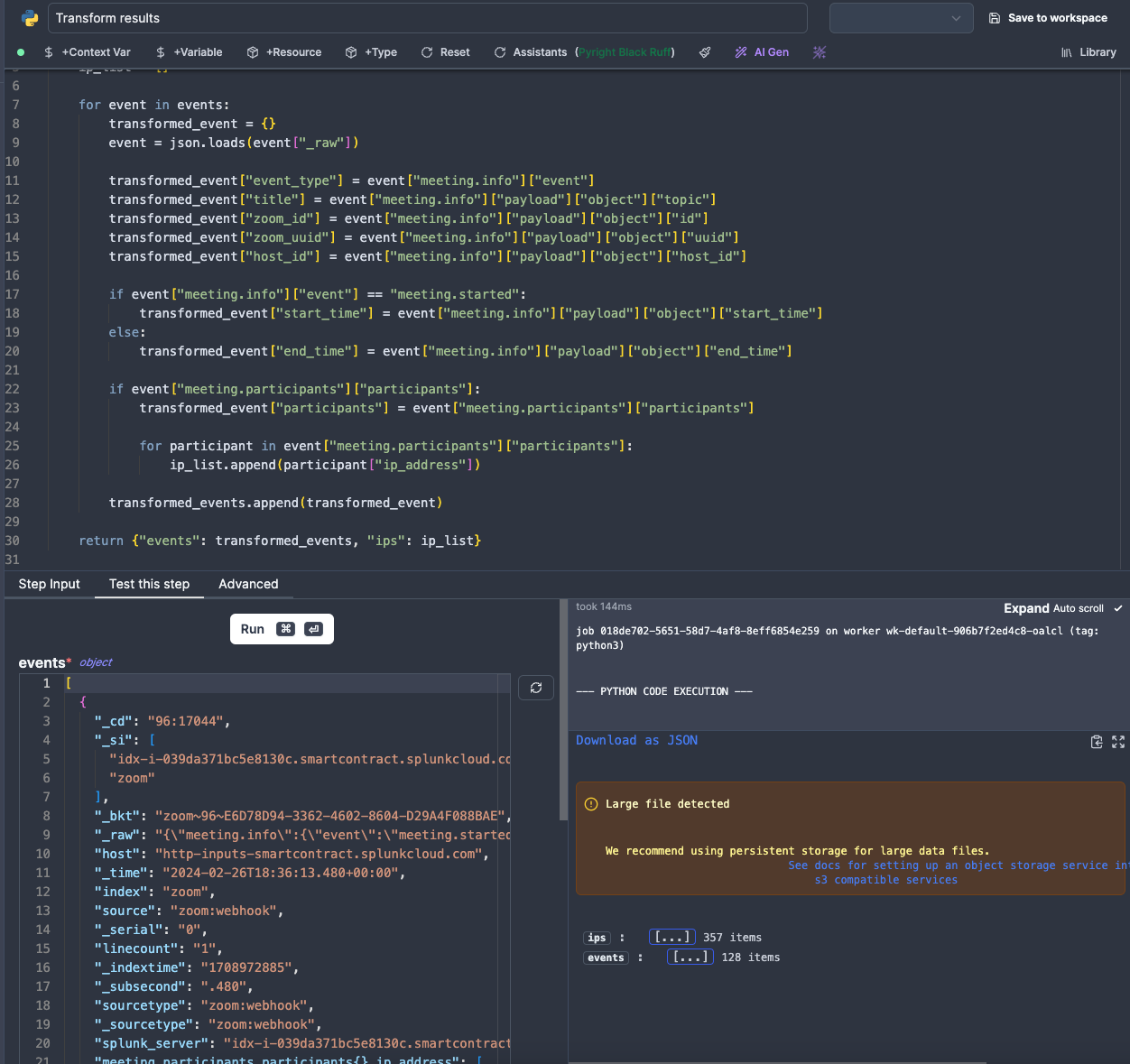
Code used in this Action:
import json

def main(events):
    transformed_events = []
    ip_list = []

    for event in events:
        transformed_event = {}
        event = json.loads(event["_raw"])

        transformed_event["event_type"] = event["meeting.info"]["event"]
        transformed_event["title"] = event["meeting.info"]["payload"]["object"]["topic"]
        transformed_event["zoom_id"] = event["meeting.info"]["payload"]["object"]["id"]
        transformed_event["zoom_uuid"] = event["meeting.info"]["payload"]["object"]["uuid"]
        transformed_event["host_id"] = event["meeting.info"]["payload"]["object"]["host_id"]

        if event["meeting.info"]["event"] == "meeting.started":
            transformed_event["start_time"] = event["meeting.info"]["payload"]["object"]["start_time"]
        else:
            transformed_event["end_time"] = event["meeting.info"]["payload"]["object"]["end_time"]

        if event["meeting.participants"]["participants"]:
            transformed_event["participants"] = event["meeting.participants"]["participants"]

            for participant in event["meeting.participants"]["participants"]:
                ip_list.append(participant["ip_address"])

        transformed_events.append(transformed_event)

    return {"events": transformed_events, "ips": ip_list}
Enriching the data
Okay, so now that we have the data fetched and transformed, we want to do 2 things:
- Enrich the gathered IPs with Spur.us data
- Save the meeting metadata to HyperionDB.
Since these 2 things can happen pretty much independently, we are going to create a Branch to all modifier, which will allow us to run multiple Actions concurently.
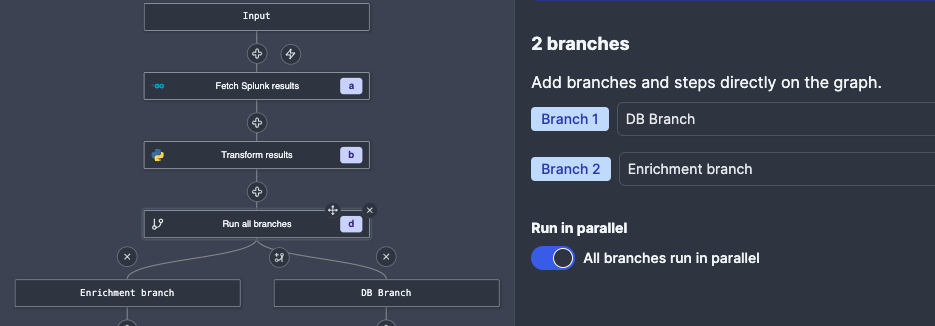
In order to enrich our IP addresses, we will use an already existing workflow to enrich the identified IP addresses with Spur.us telemetry. This makes sure that we:
- Get the enrichment data without writing all the code again.
- Make sure the data is stored in the database and doesn't get "lost"
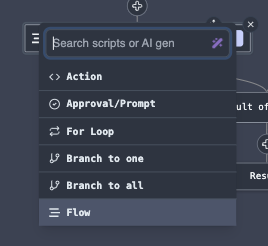
When choosing a step in a Flow, we can choose the Flow option, which will allow us to send our data to a flow.
All we need to do now is to connect the data to the flow, although there is one caveat - the Spur Enrichment Flow requires the input to be passed as a string, not as an object or array, so we need to run the .toString() function on the input (yes, you can write JavaScript expressions on top of inputs).
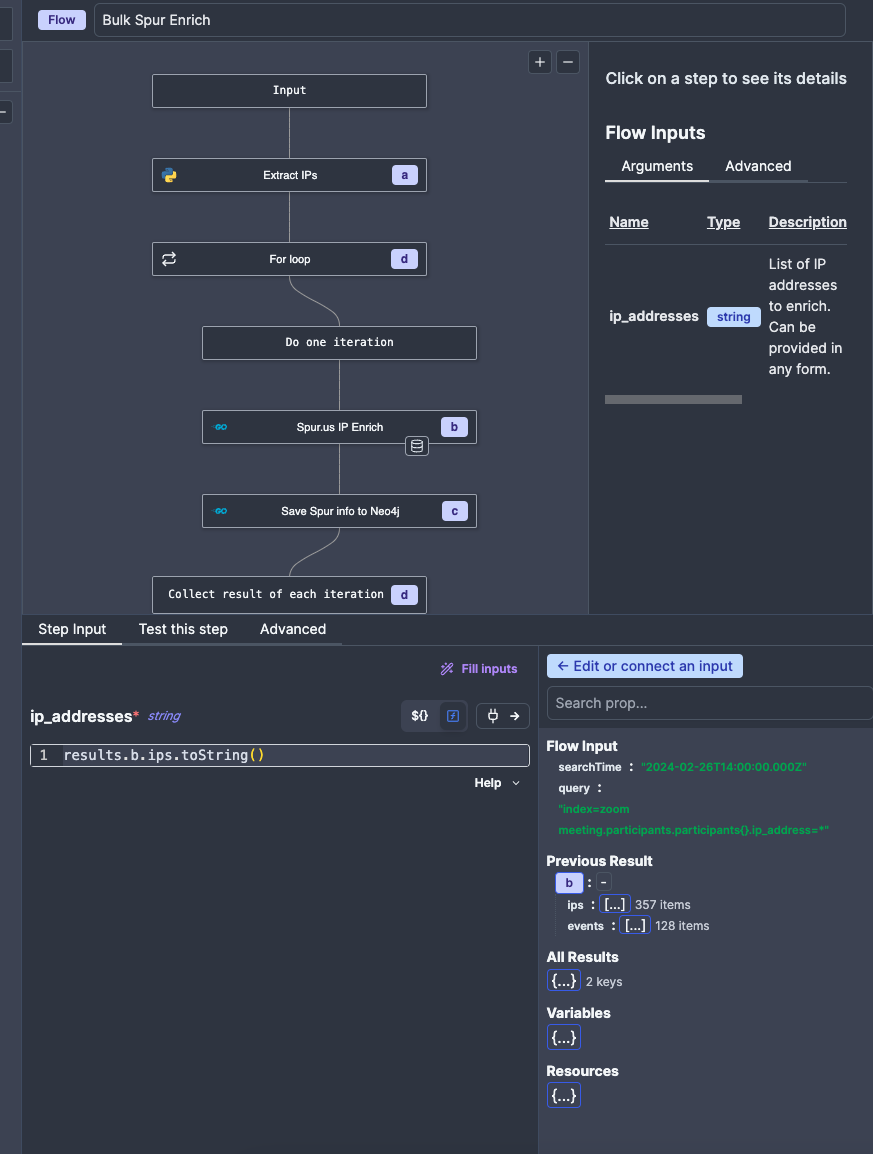
The Flow will enrich the IPs, save them to the database, but you may notice that it also returns the raw API response from Spur. This is by design - enrichment Flows like these are meant to be used as nearly Plug'n'Play replacements for actually reaching out to the API natively. This provides the benefit of saving API quota and collecting the enrichment data for long term storage and more advanced analytics.
Saving the results to HyperionDB
Now that our data is transformed and the IPs are getting happily enriched by code someone else wrote, we can send it to the Hyperion database for ingestion. We have pre-written scripts for ingesting data as batched writes, although you will need to copy paste this from another script/Flow, and replace the Cypher query used in the Script (yes, technically you can parametrise the query like we did for Splunk, but that removes formatting and makes it difficult to write and troubleshoot if your query is several dozen lines long, like this one).
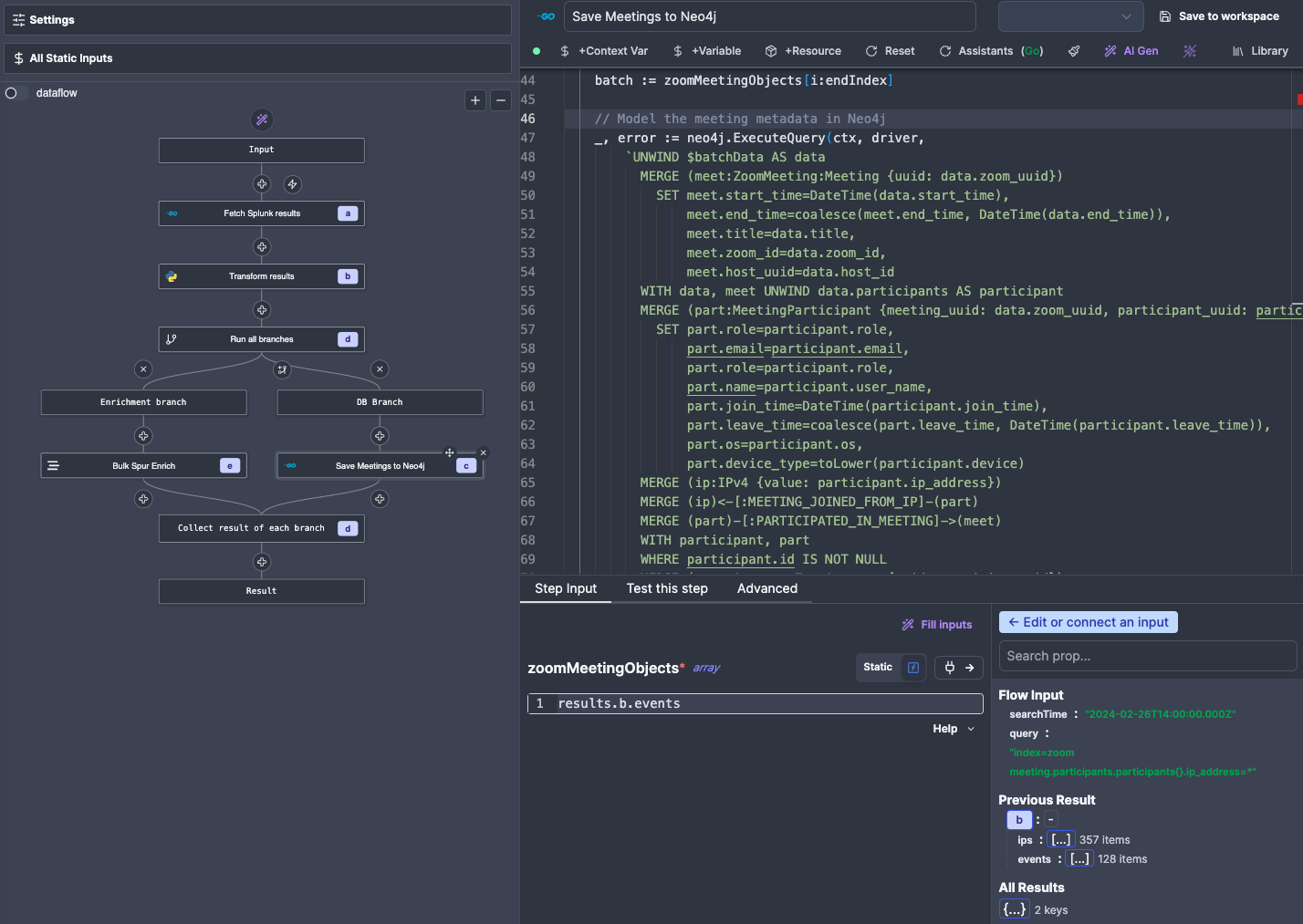
Code used in this Action:
package inner

import (
	"context"
	"fmt"
	neo4j "github.com/neo4j/neo4j-go-driver/v5/neo4j"
	wmill "github.com/windmill-labs/windmill-go-client"
)

func main(zoomMeetingObjects []map[string]interface{}) (interface{}, error) {

  hyperionDB, _ := wmill.GetResource("f/secrets/c_hyperion_neo4j")

  hyperionMap := hyperionDB.(map[string]interface{})
  dbUri, _ := hyperionMap["url"].(string)
  dbUser, _ := hyperionMap["username"].(string)
  dbPassword, _ := hyperionMap["password"].(string)
  dbDatabase, _ := hyperionMap["database"].(string)

  ctx := context.Background()

  driver, err := neo4j.NewDriverWithContext(
      dbUri,
      neo4j.BasicAuth(dbUser, dbPassword, ""))
  if err != nil {
      panic(err)
  }
  defer driver.Close(ctx)
  err = driver.VerifyConnectivity(ctx)
  if err != nil {
      panic(err)
  }

  batchSize := 300

// Iterate through the data in batches for massive performance gainz
for i := 0; i < len(zoomMeetingObjects); i += batchSize {
    endIndex := i + batchSize
    if endIndex > len(zoomMeetingObjects) {
        endIndex = len(zoomMeetingObjects)
    }

    // Extract the current batch
    batch := zoomMeetingObjects[i:endIndex]

    // Model the meeting metadata in Neo4j
    _, error := neo4j.ExecuteQuery(ctx, driver,
        `UNWIND $batchData AS data
        MERGE (meet:ZoomMeeting:Meeting {uuid: data.zoom_uuid})
            SET meet.start_time=DateTime(data.start_time),
                meet.end_time=coalesce(meet.end_time, DateTime(data.end_time)),
                meet.title=data.title,
                meet.zoom_id=data.zoom_id,
                meet.host_uuid=data.host_id
        WITH data, meet UNWIND data.participants AS participant
        MERGE (part:MeetingParticipant {meeting_uuid: data.zoom_uuid, participant_uuid: participant.id})
            SET part.role=participant.role,
                part.email=participant.email,
                part.role=participant.role,
                part.name=participant.user_name,
                part.join_time=DateTime(participant.join_time),
                part.leave_time=coalesce(part.leave_time, DateTime(participant.leave_time)),
                part.os=participant.os,
                part.device_type=toLower(participant.device)
        MERGE (ip:IPv4 {value: participant.ip_address})
        MERGE (ip)<-[:MEETING_JOINED_FROM_IP]-(part)
        MERGE (part)-[:PARTICIPATED_IN_MEETING]->(meet)
        WITH participant, part
        WHERE participant.id IS NOT NULL
        MERGE (acct:Account:ZoomAccount {uuid: participant.id})
        MERGE (acct)-[:ACCOUNT_PARTICIPATED_IN_MEETING]->(part)
        WITH participant, acct
            SET acct.email=participant.email,
                acct.username=participant.user_name,
                acct.type="zoom"
        WITH participant, acct
        WHERE participant.email IS NOT NULL
        MERGE (email:EmailAddress {value: participant.email})
        MERGE (acct)-[:ACCOUNT_USES_EMAIL]->(email)
        MERGE (username:Username {value: participant.user_name})
        MERGE (acct)-[:ACCOUNT_USES_USERNAME]->(username)`,
        map[string]interface{}{"batchData": batch},
        neo4j.EagerResultTransformer,
        neo4j.ExecuteQueryWithDatabase(dbDatabase))

    if error != nil {
        return nil, fmt.Errorf("Error executing the Neo4j query:", error)
    }

  }

  fmt.Println("Looks like stuff worked")
  return nil, nil
}
Adding error handling
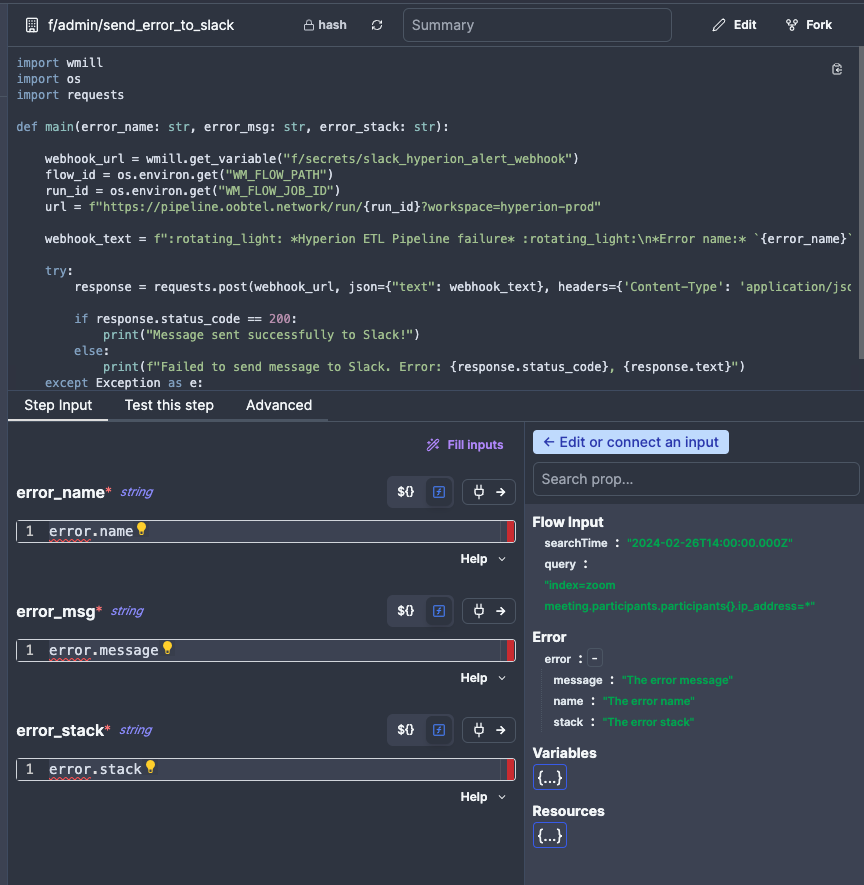
Lastly, we need to add error handling to our Flow to make sure we get notified if something goes wrong. All Flows used in Hyperion are required to use the standard error handler called Send Error to Slack, which will send an error stack to a monitored Slack channel. All you need to do is select it from the Workspace tab and connec the inputs. You can read more about Error Handling here
When you click on Test Flow in the top right corner to test your entire flow, be aware that if something goes wrong it will fire an alert into Slack for Hyperion Admins to review. So before you enable the error handler, make sure to check if your Flow actually executes without issues.